New to Owl Order? Click here for 2009's best posts! 00:00:00
Showing posts with label Tech. Show all posts

Sunday, 10 July 2011

Customising Wikipedia -- Truly the Encyclopedia Anyone Can Edit

I have always loved Wikipedia. Having the world's knowledge in your hands is rarely a disadvantage. I always say this -- if I have access to Wikipedia in Who Wants to be A Millionaire I could probably go all the way easily.

Browsing is so addictive that I would frequently spend hours Wiki-hopping. However, reading large chunks of text for long periods of time on a computer screen is very tiring. If only Wikipedia is in black, I thought.

But few days ago I realised something -- that could easily be true.

In Wikipedia's preference menu (you need an account for this) you get to choose which skin to render Wikipedia in. I kept mine at the default (called 'Vector') because IMO the others just looked horrendous.

However, beside each skin, there are two buttons, one of which is labelled "custom CSS".

Well, well, well. This is where the fun begins.

To save you the trouble of having to read through all the CSS terms and my painful and repetitive testing phases, we'll just skip straight to the results I get two days after I started.

Tada! Wikipedia in Black. I even removed the (in my opinion) rather redundant sidebar to save more space in case I want to go Wiki-hopping on my phone instead.

Cool, eh!

Friday, 1 July 2011

Live!

As of 2300 hours (or the 'eleventh' hour), 1st July, my new blog is now live! That's really a lot sooner than I thought, but the crucial pieces seem to be in place to make the place functional. Please drop in for a quick visit at http://owl-order.appspot.com/

LIVE!!!


With immediate effect, all developments on this very blog have now officially ceased (not that I've been developing this blog at all recently). I urge my visitors (if any, though I'm not hopeful) to switch their attentions to the new blog instead.

However, blogposts will be posted to both blogs for the time being, just in case.

Hope you like the new place!

Tuesday, 28 June 2011

Progress

I've been free for four whole weeks now. However, I haven't blogged as much as I did some time ago. Sorry about that.

Actually that statement wasn't exactly true. I have been blogging, just not this blog.

Yes! I have been working on my new blog. It's not exactly functional yet, but here's some sneak preview.


The new blog header.

I've spent days redesigning it. It required the use of several markup and programming languages.


How tweets show up in the new blog. This is not finalised (as is much of the rest of the website) and will probably change in the coming weeks.

I've also tested it on multiple browsers, namely Firefox 5, Google Chrome, Safari 5, Opera 11.50, Internet Explorer 8 and Internet Explorer 9. And I can guarantee compatibility across all of them, with only minor features missing from the Microsoft browsers.


How Flickr photos show up in the new blog.

I didn't realise how draining all this work is until one day, when I shifted my laptop and out fell strands of my precious hair.

So stay tuned, because with any luck, you're in for a treat in a few weeks' time.

PS. These screenshots are taken off live webpages. In other words, parts of the blog are already accessible via the web. Link is provided er, somewhere in this blog. Happy digging.

Thursday, 16 June 2011

Updating used to be fun

Just a few years ago, any internet user who cared about stability and performance of their rig would be excited by the release of browser updates.

Updates to your favourite browser was a huge thing. Backend changes aside (huh? JavaScript? Canvas?), various revamps were prominently visible to users the first time they see their new, updated browsers. Remember the joy of seeing tabs when you first went from IE6 to IE7? Or found out how awesome the AwesomeBar of Firefox 3 was?

The Updating-Hype back then was phenomenal. Firefox 3 garnered over 8 millions downloads the day it was released, even setting a Guinness World Record for most downloads in a single day. Requests were so frequent that at one point, Mozilla servers were unable to service all of them and were taken down temporarily.

Updating was just plain fun. The downloading, the installing, the exploring and the benchmarking. It's like a parent seeing a kid growing up.

All these changed in 2008 when a new browser was born.

Google Chrome led the way to many browser innovations, the same way Apple iPhone introduced the world to an intuitive touchscreen interface. Minimalistic user interface, lightning fast JavaScript performance and optimisation for multi-core machines are just three of the lot. These innovations then slowly found their way to other browsers, widening their reach, Chrome or not.

Chrome had a new update and version numbering system too. New "major" updates are released every two months or so, with the version number incremented. The rationale behind this is to push new features to end users quicker than usual. Updating is fully automatic -- the browser downloads and installs a new version behind the scene whenever it is available.

The cool automatic-update feature makes sure that every Chrome user uses the latest (and greatest, as Mozilla put it) version. However, with releases so frequent, each "major" release isn't so major anymore. Relatively few people can name 10 improvements Chrome 12 (the current stable release) has over Chrome 1. Heck, most people don't even know which version they're using.

Worst of all, they took the fun out of updating. Users don't update anymore -- the browser does. Updates present too few changes and come too frequent to garner press attention.

And guess what, Mozilla and Microsoft are adopting this update approach on their Firefox and Internet Explorer browsers respectively. In short, it will be soon before long when people start saying "Update? What update?" like a clueless llama.

Now, Mozilla Firefox 5 is getting released next week, on the 21st of June. But who cares?

Thank you, Google Chrome.

Wednesday, 9 March 2011

New CBox coming soon

Due to recent visits by certain "blogwalkers", whom I highly suspected to be scripted bots, spamming links of their sites (usually URL shortened) on my CBox, I've decided to take matters into my own hands.

I've spent the past three hours coming up with my very own version of CBox -- the CBox that I have full control over, and we're not just talking about looks here. Everything including whether I should get an email whenever someone posts on the CBox (not implemented yet), whether I should allow anonymous messages, the rights to prevent users from posting empty messages, which IP addresses I allow to post, the use of asynchronous technology (to speed up response) and such.

Since the blogwalkers frequently use shortened URLs, this CBox I wrote (which I call Chirp Box) blocks two types of shortened URLs -- tinyurl and bit.ly in the URL/Email field. If I need to expand my blocklist, I need only to spend a few extra seconds to add extra items into the blocklist and we're done.

So if you need to share (shortened) links with me, throw them into the message field.

Here it is. I'm not replacing it with my CBox yet -- it will be done some time later when I export all my CBox messages over to my server. In the meantime, you can start toying with it.


Blogwalkers, you have been warned.

Saturday, 5 March 2011

Making Firefox 4 Your Own

The development cycle of the upcoming Mozilla Firefox 4 is coming to an end. Few days ago, a great number of bugs mysteriously disappeared from the blocking list. Does this mean that the new iteration of the world's favourite alternative browser is getting released soon?

Firefox 4 features many improvements, including better compliance to web standards, quicker startup, hardware acceleration and over 600% faster JavaScript speed. However, one change is attracting all the attention -- the User Interface (UI) overhaul.


The default User Interface of Mozilla Firefox 4 for Windows Vista and Windows 7. Much of its appearance can be modified.

While most people prefer the new, clean look to the clunky old Version 3.x interface, there's no satisfying everyone. If you find some of the changes rather annoying, it's fine -- Mozilla Firefox is the world's most customisable browser, and a lot of the changes can be (at least) partially reversed.

Firefox 4 is still not ready yet, but Mozilla have made good beta releases. Download the latest Release Candidate at http://www.mozilla.com/en-US/firefox/RC/.

Restoring tab bar below navigation bar

Mozilla have decided to agree with the rest of the world by placing tabs on top of the navigation bar. If you don't like it that way, however, you can always undo it.


Place your cursor between the URL Bar and the Search Bar so that it turns into a two-way arrow. Right click, and click on "Tabs on Top". Voila! Now Firefox 4 looks THAT much like Firefox 3.6.


Firefox 4 with the tab bar below the navigation bar.

Restoring the menu bar and bookmarks bar

In Windows 7, Firefox 4 hides the menu bar and the bookmarks bar by default. To re-enable them, right click on the little space between the URL Bar and the Search Bar, and click on "Menu Bar" or "Bookmarks Toolbar".


Firefox 4 with both Menu Bar and Bookmarks Bar.

Restoring old-style Reload and Stop buttons

Two buttons you may struggle to locate in Firefox 4 are the Reload and Stop buttons. That's because they have been combined with the Go button and integrated into the URL Bar (AKA AwesomeBar), in addition to shrinking in size.

This means that the Reload button is missing when a page is still loading -- you'll need to stop the page first before reloading it, that's two clicks away.

To split the buttons apart again, right click on the little space between the URL Bar and Search Bar, and click "Customise...". The buttons will (temporarily) separate, and a window will popup. In the popup window, look for the "Separator" item and drag it to between the Stop and Reload buttons. Click "Done" on the popup window and tada! The buttons are no longer combined.


Firefox 4 with split Stop/Reload buttons.

You can use the same technique to move the buttons to the left of the URL Bar, a la Firefox 3.x. In addition, the Esc key acts as the stop button, and you can reload by hitting Ctrl + R on your keyboard.

Thanks to Jonathan for this tip.

Duplicating tabs by overriding Switch-to-Tab

One new feature of Firefox 4 is Switch-to-Tab, implemented in the URL Bar (AKA AwesomeBar). Should you need to switch to a tab, just go to the URL bar (Ctrl + L) and type in the name (or URL) of the tab, a "Switch-to-Tab" option will appear among the results. Choosing the results will bring you to that particular tab. This feature is particularly useful for those who have countless tabs open in multiple windows in any time.


But what if you want to duplicate that tab? Use your arrow keys to navigate to the results you want, and hold down the Shift key -- the Switch-to-Tab feature will be temporarily disabled. Hit the Enter key with the Shift key still down to duplicate that tab.


The "Switch-to-Tab" function is disabled even though the tab is opened (second tab) if the Shift button is held down.

Checking state of hardware acceleration

Hardware acceleration means the use of your GPU (the cool term for graphics card) to paint on your screen. With it turned on, HTML elements can be drawn much faster (depending on your GPU) while keeping CPU usage low.

To check if hardware acceleration is turned on for you, open a new tab, and type "about:support" without the quotation marks into the URL Bar and hit Enter. Scroll to the very end and look for the entries labelled "Direct2D Enabled", "DirectWrite Enabled" and "GPU Accelerated Windows". If all three are enabled, congratulations! I recommend you to enable smooth scrolling (click on the Firefox button, "Options", "Options", "Advanced" section, "General" tab). If it's not, well, you can try updating your GPU driver.


Firefox 4 with hardware acceleration (mainly) turned off.

What happened to the progress bar?

In Firefox 3.x, a progress bar was placed at the status bar. In the new Firefox, however, the status bar has been removed altogether, and the progress bar has not found a new home.

The progress bar was removed because it was never accurate -- there is currently no way of calculating the size of a webpage without loading it first, and hence the progress shown are just crude estimates. Opera displays progress as a fraction, with both the numerator and denominator changing constantly as the page is loaded -- this proves just the point.

Instead, the throbber (the small rotating icon of tabs) has been split to two -- a black one, rotating anti-clockwise, and a green one, rotating clockwise. The former shows that the browser is trying to connect to the server, while the latter means the browser has started receiving data.

Disabling taskbar preview

In Windows 7, you can now preview each of Firefox 4's tabs by clicking on the Firefox icon on the taskbar. Clicking on the preview of each tab will bring you to that particular tab.

However, this means switching from a non-Firefox window back to Firefox requires an extra click, which may be annoying to some people. To undo this, open a new tab, type in "about:config" without the quotation marks and hit enter. Agree to be careful, and a long list of configurations should appear. Type "taskbar" into the "Filter" field, and look for the entry called "browser.taskbar.previews.enable". If it is enabled, double-click it to disable it. The change is instantaneous -- clicking on the Firefox icon on your taskbar should now minimise or maximise the browser without asking you which tab you want.

Use the URL Bar as a Search Bar

The URL Bar is also called the AwesomeBar for many reasons. Not only does it search your bookmarks and history to complete your typing, it can also search using your favourite search engines, eliminating the need for a Search Bar.

How does it work? Well firstly, you have to do a bit of setup. Click on your search engine's icon in the search bar, and click "Manage Search Engines..." in the dropdown box that appears. There will be a popup. Choose a search engine, say, "Wikipedia (en)". Select it and click on "Edit Keyword...". Set "WK" as the keyword, omitting the quotation marks, and click OK all the way.


Now, open a new tab (Ctrl + T), and type in "WK firefox" (without quotation marks) and hit enter. The search result for the term "firefox" in Wikipedia appears, which happens to be the Firefox page.

Repeat this procedure with the rest of your search engines, make sure to use unique keywords for each of them. Once you're done, you'll probably never need to use the Search Bar again.

What happened to Back/Forward dropdown box?

In earlier Firefox versions, there's a little dropdown button beside the Back/Forward buttons. Clicking on it will bring up the history of the current tab. This little dropdown button, however, is missing in Firefox 4. Instead, try right clicking on either the Back or the Forward button.


Back/Forward dropdown menu on Firefox 3.6.


Back/Forward dropdown menu on Firefox 4, invoked through right-clicking on the Back or Forward buttons.

Also, there's a handy shortcut for Back/Forward -- try Alt + Left and Alt + Right.

By the way, right-clicking on the Back/Forward buttons in Firefox 3.6 will also bring up the dropdown menu. Didn't know that, huh?

What are App Tabs?

Right click on a tab, and click on "Pin as App Tab". This reduces the size of the tab and moves it to the far left. To undo this, Right click on the tab and hit "Unpin Tab".


App Tabs are meant for Ajax intensive webpages. These webpages are generally left open for long periods of time, with the URL Bar and the Back/Forward buttons unused. Examples are Facebook, GMail and Twitter pages. By moving App Tabs to the far left of the window, they are easy to locate, and with the close button missing, accidental closing of such tabs are rather improbable. The size reduction clears up more space for other tabs in the tab bar. Mozilla are also planning to remove the navigation bar altogether for App Tabs in the future, freeing up more space for the webpage.


This feature is here to stay -- if you don't like it, just don't use it. No harm done.

Firefox 4 doesn't ask me to save my tabs before quitting?

I'm not sure if this is a bug or a feature. I have long enjoyed the "Save and Quit" feature of Firefox, allowing me to save all my tabs and shut down my computer, but should the shut down be initiated without a user sitting by the computer, the "Save your tabs?" window may cause the shut down to pause for long periods of time.

Should the "Save and Quit" be missing from your Firefox 4, open a new tab (Ctrl + T) and type "about:config" into the URL Bar. Promise to be careful and type "quit" into the "Filter" field. Look for the entry called "browser.showQuitWarning", and if its value is "false", double-click on it to toggle it to "true". Firefox 4 should now ask you if you want to save your tabs when you quit with multiple tabs opened.

What happened to the RSS button?

In Firefox 3.6, whenever a website has live feeds available to be subscribed, an RSS icon will appear in the URL Bar. This is removed in Firefox 4. So how do you subscribe to live feeds?

First way is to click on the orange Firefox button, hover over the "Bookmarks" button and click on "Subscribe to This Page...".

A second way is to place a Subscribe button to your Navigation bar. Place your cursor on the space between the URL Bar and Search Bar so that it turns into a two-way arrow. Right click and hit "Customise...". Look for the "Subscribe" icon in the popup window, and drag it to anywhere in the navigation bar, say, to the right of the Search Bar. Hit "Done" to close and now you have a permanent "Subscribe" button that activates when the current tab has live feed available.


There you go! I hope you find these tips useful in making Firefox 4 a browser you can call your own. Also make sure you drop by http://www.getpersonas.com/ to skin your browser (try some animated personas like this one!) and get some cool addons at http://addons.mozilla.org/.

I hope you enjoy Mozilla's latest browser as much as I am. All the best.

Monday, 27 December 2010

Boggle

Wrote a small JavaScript routine to generate a regular 4x4 Boggle board, complete with a 3-minute timer. Read about the game at Wikipedia for the rules, if you're not familiar with it already.


It's pretty primitive now, but it's definitely usable. The 16 dice (and their faces) are fully scrambled, the timer counts down from 3 minutes and hides the board after the game to make sure no one cheats (the board can be shown again with a single click of the mouse). Best of all the game is fully HTML/JavaScript, which means it can be played without an internet connection.

If you find it lame, well, sorry about that. If you like it, however, more features may be added, such as a dictionary function, if I decide that I like this little piece of gadget. Even better, try some commercially available online Boggle games!

Enjoy Boggling, and a belated Merry Christmas to everyone!!!

Browser compatibility
- Mozilla Firefox 3.6+Yes
- Google ChromeYes
- Windows Internet ExplorerNo
- Apple SafariYes
- OperaYes

Thursday, 11 November 2010

Mozilla Firefox 4 Beta 7 Released

The newest beta of the newest version of Firefox was released just hours ago.

Firefox 4 is the upcoming version of the world's second most widely used browser and features many upgrades over previous versions, including revamped user interface for Windows and Mac users (which we have seen previously), Tab Panorama (previously called Tab Candy), completely new HTML5 parser, hardware acceleration, support for newer HTML/CSS2/CSS3 standards and super speedy JaegerMonkey JavaScript engine compiler, among many others.

Beta 7 is the feature freeze beta -- basically, we don't expect to see many UI changes or new feature introduction after Beta 7, if at all. The upcoming betas (there will at least be a Beta 8) will probably polish the browser from behind-the-scenes, such as performance improvements, security fixes and hardware acceleration for a wider set of computers. For this reason, Beta 7 should give a pretty good idea what to expect when Firefox 4 gets officially released as a stable version.

Sadly, progress strips on the individual tabs have been removed, and I could not find justification for this action at Mozilla blogs or even Bugzilla.

I would recommend Firefox 3.6 users to give it a try, especially when installing Firefox 4 does NOT uninstall Firefox 3.6, and, um, the fact that my blog is specially designed for the upcoming browser (though all features are available at Webkit-based browsers too).

Download the new beta at http://www.firefox.com/beta.

Monday, 1 November 2010

I Have an Android Device

Yes, you heard right. I have an Android device.

Booting Up
Android's boot up screen!

Without spending a single penny. Literally.

Locked Screen
Android 2.2 Froyo's locked screen.

Did I get lucky? Well, no, not really. It's actually a simulated Android device that runs in my computer, under Ubuntu. And it's actually part of my Final Year Project.

Home Screen
Android 1.6 Donut homescreen.

Cool, eh! Aw come on, a Linux device running in another Linux device, that's cool!

Ah well. I DO have another Android device.

Oh it's real, with hardware and all. Wait and see.

Wednesday, 27 October 2010

JavaScript at Owl Order!!!

Since March, I've been adding bits of JavaScript code to my blogs. These codes really make this blog a true dynamic website.

Some features you may (or may not) have noticed include
  1. Random background image on load. Refresh the page to randomly load a new image!
  2. Time-based background colour. Bluish in the middle of the day, and dark gray at midnight. Changes automatically at the tick of the hour -- no reloading required!
  3. A certain surprise for an hour every day...
  4. digital clock, at the top of the page. My very first piece of JavaScript code! (Though it was refined and updated some time later.)
  5. Blogpost images with silver frames that glow when you hover your cursor on them! On some browsers, this happens with a smooth dark-to-light animation.
  6. Also with animation (on some browsers), "Hi-Res on Flickr" tags overlay images with high resolution copies over at Flickr upon mouse-over. Clicking on these images open their Flickr pages in a new tab.


Unfortunately, some of these features don't work on all browsers.

FeatureMozilla Firefox 4Google ChromeMozilla Firefox 3.xApple SafariOperaInternet Explorer 9Internet Explorer 8
Random BackgroundYesYesYesYesYesYesYes
Time-based Background ColourYesYesYesYesYesYesYes
Midnight EventYesYesYesYesYesYesYes
Digital ClockYesYesYesYesYesYesYes
Glowing Image FrameYesYesYesYesBuggyYesNo
Image frame with AnimationYesYesNoYesBuggyNoNo
Hi-Res TagYesYesYesYesNoNoNo
Hi-Res Tag with AnimationYesYesNoYesNoNoNo
FeatureMozilla Firefox 4Google ChromeMozilla Firefox 3.xApple SafariOperaInternet Explorer 9Internet Explorer 8


It is rather obvious that I designed my blog for the open-source Gecko (used in Firefox) and Webkit (Chrome and Safari) rendering engines. For this reason, I heavily recommend Mozilla Firefox 4, Google Chrome or Apple Safari to unleash all features at my blog.

Download them here:


Have fun, and watch out for more dynamic features to come!

Thursday, 16 September 2010

Firefox 4 and Internet Explorer 9: Part I

Introduction to the Browser Wars

15 years ago, when the web was young, webpages were static and boring.

Those are the two last words we use to describe webpages today. Sites like online email clients (GMail, Yahoo!, Windows Live), Facebook and Twitter are incredibly dynamic, changing their contents with the click of a mouse without redirecting users to new pages, all the while being aesthetically pleasing, providing real time updates to requests, like the "Loading..." and "Sending mail is taking longer than usual" messages.

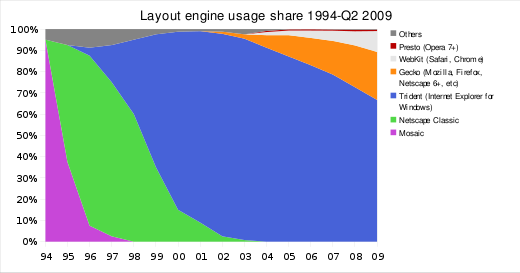
These dynamic sites, generally known as Web 2.0 sites, are made possible by the intense competition between browsers. The browser wars started in the 1990s, between Netscape and Windows Internet Explorer (back then Microsoft Internet Explorer). When Netscape virtually lost all of their market share to IE, the Netscape project was donated to Mozilla (kind of), and Mozilla Firefox was born, sparkling the second browser war, soon joined by Opera and Apple Safari.

Chart showing history of web browser market share. Microsoft Internet Explorer has been dominating since before 2000.

Few years later, Google demonstrated their idea of a web browser by releasing Google Chrome with revolutionary features like extremely fast JavaScript engine, good standards compliance, multi-process tabs and clean user interface. These features were widely seen as reasons for the rapid adoption of Google's browser (besides good marketing by one of the world's leading advertising company) and Apple, Opera and Mozilla tried to keep up.

While the programmers struggle, the developers and us, the end users, reap the benefits. The five main browsers today are all very capable. They're, ranked from the most popular, Windows Internet Explorer, Mozilla Firefox, Google Chrome, Apple Safari and Opera. Today, I'll be focusing on Internet Explorer 9 and Mozilla Firefox 4. They're still both in beta but are to be officially released within the next two months, intensifying the war.

Browsers
The five major browsers, sitting on Windows 7 taskbar -- Windows Internet Explorer, Mozilla Firefox, Google Chrome, Apple Safari and Opera. Notice that they're all rather round in shape. Coincidence?

If you are a Firefox 3.6 user, you can try Firefox 4 beta by clicking here. Installing Firefox 4 beta does NOT uninstall Firefox 3.6, so you have nothing to lose but about 30MB of your hard disk space. Remember that Mozilla is still actively developing Firefox 4, so expect new features to be introduced, bugs fixed and performance streamlined from time to time.

If you are still using Internet Explorer 6, 7 or 8, please, please, please switch! You can get Internet Explorer 9 Beta here, Mozilla Firefox here, Google Chrome here, Apple Safari here and Opera here.

Part 1: User Interface

Both IE9 and Fx4 feature heavily revamped user interfaces.

The IE team have removed many components previously present in Microsoft's browser. The status bar, search bar and menu bars are totally removed. In fact, there is only one toolbar now, housing the navigation buttons, URL box, tabs and settings buttons. Of course, this means we have a much shorter URL box, but it doesn't really matter because most users don't pay much attention to the entire URLs anyway -- it's the domain and end portions that are important. As a result, more vertical space was freed up, allowing webpages to fill up more of your screen (remember IE6 and the dozen toolbars?).

Internet Explorer 9 User Interface
Internet Explorer 9, displaying my blog.

The only downside is the limited number of tabs practically visible in one window. Of course, you can open as many tabs as you want, but I personally like to see a small portion of the tab's title (not just the Favicon). The IE team, however, has made tab-tearing and arranging possible (though they are already available on most other browsers for literally years). Just drag the tabs to the left or right to rearrange them, or pull them out of the tab bar to force them into a new window.

Looks like IE users with smaller screens will have to make themselves comfortable with multiple windows.

Wait, what about the search bar? Isn't it missing? Well, not exactly. It has been combined with the URL bar, just like Chrome's Omnibar and (to a certain extent) Firefox's AwesomeBar. Just type any search keywords into the URL bar and IE provides the option to search the web by using a choice search engine.

Internet Explorer 9's URL Bar
Searching for the phrase "internet explorer 9" by typing in the URL bar. Suggestions are provided in real time. For privacy purposes, this is not enabled by default and can still be turned off after being enabled.

IE8 bothers users whenever a new username-password combination is entered by popping a new window up, asking if it has to remember the combination. In IE9, things got friendlier. Instead of an annoying popup, a small message appears at the bottom of the screen. It doesn't steal focus from the browser window, and hence users can simply choose to ignore it without any extra clicks (from both the mouse and the tongue). This very much reminded me of the way Firefox 3.x handles notifications, except that in Firefox, messages are housed just below the tab bar. Fx4, however, has an less obstructive way of displaying messages, which will be seen later.

Internet Explorer 9 Notifications
Internet Explorer 9, displaying my blog overlaid with a notification at the bottom.

Common to all other browsers, (except the notable Mozilla Firefox), the default new-tab page of Internet Explorer has been improved. Instead of saying the lame "you've just opened a new tab" (I know that, you idiot!), it now shows 10 most frequently visited sites and describes their activity. Just like Opera's speed dial and Safari's Top Sites, one can open any of the sites by clicking on their boxes, but preview is unavailable -- one has to recognise the Favicon and/or name.

Internet Explorer 9's Popular Sites
Internet Explorer 9's Popular Sites page opens by default when you open a new tab.

Oh by the way, status bar messages now show up as tooltip-like boxes, which heavily reminds me of Google Chrome (again). The Windows IE team has also borrowed the big back button from Firefox, the forward button being significantly smaller.

Switching our focus to Mozilla Firefox 4, the menu bar has been removed as well. Instead, an orange Firefox button has been added at the top left corner as a more space-efficient substitute (anybody else thinking Opera?). Users will also notice that, this time, the tab bar is positioned on top of the navigation bar, just like Google Chrome.

Firefox 4 User Interface
Mozilla Firefox 4 displaying my blog. Note that pre-beta releases of Firefox are branded Minefield, and by default, Fx4 displays status bar and positions the tab bar on top of the navigation bar.

The latest Firefox reincarnation has also got more adapt at handling tabs. Besides the usual tab-rearranging and tearing, users can now switch tabs by using the URL bar, dubbed the AwesomeBar. Just type the title (or URL) of the tab to switch to in the URL bar, and a "Switch to tab" option will appear. Clicking on it will bring the user to the chosen tab at the corresponding window. Handy for users who open, like, 50 tabs at any time.

Firefox 4's switch-to-tab feature
Mozilla Firefox 4's Switch-to-Tab feature works even for tabs opened in other Firefox windows.

Mozilla has also introduced a prototype feature for tab management, called the Tab Candy. By pressing Ctrl + Space (in Windows, at least), users get to preview, rearrange, close and switch to any tabs open in any Firefox 4 window. One can make previews of less important sites smaller, or even reduce it to a pile, while giving more space to more frequently visited pages. This answer to Opera's tab preview looks promising, but is still rather unpolished and may not make it to the first public release of Mozilla Firefox 4.

Firefox 4 Tab Candy
Tab Candy on Mozilla Firefox 4

One extra tab-related feature is the addition of App Tabs. In Mozilla Firefox 4, users get to convert regular tabs to App Tabs. This feature, available by right clicking on tabs, is meant to be used with web apps, such as email clients and social networking sites which use heavy AJAX. Sites like these rarely need to be closed or refreshed, so the App Tabs are made smaller, pinned to the far left of the tab bar and have their close buttons hidden. If the navigation bar can be altogether hidden when the App Tab is opened so as to free up more space for the web app, that would be great, but alas, that feature is nowhere to be seen.

Firefox 4's App Tabs
The small tab on the left with the Yahoo! logo is an App Tab. Right click on any tab to convert it into or from an App Tab.

With IE9, Opera, and Chrome slashing the status bar and replacing it with temporary tooltips, the Mozilla team have been thinking of ways to hide it and move its functionality elsewhere instead. Perhaps the most useful feature of the status bar is to display the target URL of hyperlinks. In Firefox 4, target URLs will appear on the right side of the AwesomeBar when users hover their cursors over a hyperlink. A great idea, since users rarely have to glance at the AwesomeBar for more than twice at each page, leaving the bar relatively idle.

Firefox 4 Hyperlink URL
The AwesomeBar split to two, the left displaying (part of) the URL of the current page, while the right showing the target URL of a hyperlink.

But wait, the status bar also shows the loading progress of webpages. Google Chrome shifted this information to the same tooltip the hyperlink URL was displayed. Opera made do by calculating the amount of elements to be loaded and displaying the number of elements loaded over the number to be loaded at the right side of the URL bar. In Safari, the URL bar doubles as the progress bar, its background changing when the page is loaded, just like iPhone's. This information seems to be missing in IE9 (am I the only one?). The Mozilla team has come up with yet another innovative feature. In Firefox 4 mockups, a thin progress "strip" is displayed on top of each and every loading tab, allowing users to, at one glance, tell which tabs are still loading. The strips disappear once the content of the tab has been fully loaded. This feature hasn't been implemented in the current beta release, however (see https://wiki.mozilla.org/Firefox/4.0_Linux_Theme_Mockups if you're interested), and is instead substituted by a pie-chart-like Favicon. While not nearly as aesthetically pleasing, it is definitely just as practical.

Firefox 4 Tab Progress
The pie-chart-like icons at the left side of the tabs actually show the loading progress of the tabs. Nice.

Edit 17 Sept: The progress strip for individual tabs has landed on today's pre-beta release of Mozilla Firefox 4 Beta 7, and the pie-chart icons removed. Loading tabs now show a generic favicon, a bug (?) which will probably be fixed before Beta 7 goes live.

Firefox 4 Progress Strips
Progress strips showing loading progress for tabs. Loading progress for the current active tab is displayed underneath the AwesomeBar instead of on top of its tab. The strips disappear once the contents of the tabs finish loading. They blend in nicely with Windows Aero theme and are neither too distracting nor invisible.

The way Firefox 3.6 handles notifications was fine, but apparently not good enough for the Firefox team. In Firefox 4, these messages are now reduced to mere speech bubbles. As usual, they don't stop webpages from loading or steal focus from the browser window, so users can choose just to ignore it. What I like, however, is how users can choose the "Not Now" option by clicking on anywhere outside the speech bubble, thus shutting it up without even have to move the mouse a single inch.

Firefox 4 "Speech Bubble"
A notification bubble in Mozilla Firefox 4. Note that the "No" button is missing -- just click anywhere but the notification bubble to shut it up.

All these, coupled with the use of Windows Aero in the browser window, make Firefox 4 a fun browser to use. Best of all, everything from tab bar position (on top or bottom of navigation toolbar) to presence of status and menu bars remain fully customiseable, typical of Firefox tradition.

There are other (minor) interface changes here and there for both Firefox and Internet Explorer, such as redesigned add-ons page (Fx), downloads window (IE), tab animation (both), reload/stop button combo (Fx), but I'll leave these to those who are interested.

Besides interface, the new IE9 and Fx4 are also better integrated with the features of Windows 7. You can pin not just Internet Explorer and Firefox applications to the taskbar, but also sites you frequently visit. Pausing your cursor over either the IE or Fx icons on the taskbar will also show a preview of the tabs (tabs, not windows) opened -- one can switch to or close any of the tabs directly at Windows taskbar. This option can be disabled (at least in Firefox) if you don't fancy it.

Preview of Tabs on Windows 7 Taskbar
Preview of tabs by clicking on Internet Explorer 9 or Firefox 4's icons on Windows 7 taskbar.

Coming up: rendering engine and performance of IE9 and Fx4!

Saturday, 7 August 2010

Web Gadgets: And Another JavaScript Clock!

One of the first programs I wrote when I learnt JavaScript was a digital clock.


Then, just last month, I wrote an analogue clock, with the hands all made up of periods.


And now, behold! Yet another JavaScript clock. This time, the hands are not made of lousy dots -- they're real hands now, drawn with two of the latest CSS features: transform and transition.


For Google Chrome and Apple Safari users, you should already be able to see hands slowly move between ticks, instead of "teleporting" from location to location. The same goes to Opera users, although some minor bugs may be observed.

Again, for Firefox users, upgrade to version 4.0 or later (4.0 beta currently, at http://www.mozilla.com/en-US/firefox/beta/) to see what you've been missing. Seriously, Version 4.0 is good. Those who prefer to stay with earlier versions will still see a functioning clock with "teleporting" hands though.

Sadly, for Internet Explorer users, this clock doesn't work. You'll have to wait for IE9 to try your luck, sorry about that.

Here goes the source code, for those who are curious. Remember, Blogger.com does NOT support JavaScript at blog bodies, so use a proper HTML/JavaScript gadget for the clock.

<style type="text/css">
.dot {position:absolute;font-weight:bold;}
#sechand {position:absolute;top:80px;left:40px;width:70px;border:1px dashed;transform: rotate(-90deg) translate(35px,0px);-moz-transform: rotate(-90deg) translate(35px,0px);-webkit-transform: rotate(-90deg) translate(35px,0px);-o-transform: rotate(-90deg) translate(35px,0px);}
#minhand,#hrhand {position:absolute;left:40px;top:80px;width:70px;transform: rotate(-90deg) translate(35px,-1px);-moz-transform: rotate(-90deg) translate(35px,0px);-webkit-transform: rotate(-90deg) translate(35px,-1px);-o-transform: rotate(-90deg) translate(35px,-1px);}
#minhand {border:2px solid;}
</style>

<div style="position:relative;margin-left:auto;margin-right:auto;width:160px;height:170px;" id="labelcontainer">
<hr id="sechand" />
<hr id="minhand" />
<div id="hrhand" /><hr style="width:50px;border:2px solid;position:relative;right:10px;" /></div></div>
<span id="debug"></span>

<script type="text/javascript">
for (var i=0;i!=13;i++)
{
document.getElementById('labelcontainer').innerHTML+="<span class='dot' style='top:"+y_coor(i*5,75,74)+"px;left:"+x_coor(i*5,75,74)+"px;'>."+"</span>"
}
upd_sec();
upd_min();

function upd_sec()
{
var now=new Date();
setTimeout('upd_sec()',1000-now.valueOf()%1000);
var angle=now.getSeconds()*6-90;
if (now.getSeconds()==59)
setTimeout('sec0()',800);
document.getElementById("sechand").setAttribute("style","\
transition-duration:0.75s;\
-moz-transition-duration:0.75s;\
-webkit-transition-duration:0.75s;\
-o-transition-duration:0.75s;\
transform: rotate("+angle+"deg) translate(35px,0px);\
-moz-transform: rotate("+angle+"deg) translate(35px,0px);\
-webkit-transform: rotate("+angle+"deg) translate(35px,0px);\
-o-transform: rotate("+angle+"deg) translate(35px,0px);");
}

function upd_min()
{
var now=new Date();
setTimeout('upd_min()',60000-now.valueOf()%60000);
if (now.getMinutes()==59)
setTimeout('min0()',850);
var angle=now.getMinutes()*6-90;
document.getElementById("minhand").setAttribute("style","\
transition-duration:0.75s;\
-moz-transition-duration:0.75s;\
-webkit-transition-duration:0.75s;\
-o-transition-duration:0.75s;\
transform: rotate("+angle+"deg) translate(35px,-1px);\
-moz-transform: rotate("+angle+"deg) translate(35px,0px);\
-webkit-transform: rotate("+angle+"deg) translate(35px,-1px);\
-o-transform: rotate("+angle+"deg) translate(35px,-1px);");
angle=now.getHours()*30+now.getMinutes()/2-90;
document.getElementById("hrhand").setAttribute("style","\
transform: rotate("+angle+"deg) translate(35px,-1px);\
-moz-transform: rotate("+angle+"deg) translate(35px,0px);\
-webkit-transform: rotate("+angle+"deg) translate(35px,-1px);\
-o-transform: rotate("+angle+"deg) translate(35px,-1px);");
}

function sec0()
{
document.getElementById("sechand").setAttribute("style","\
transition-property: none;\
-moz-transition-property: none;\
-webkit-transition-property: none;\
-o-transition-property: none;\
transform: rotate(-96deg) translate(35px,0px);\
-moz-transform: rotate(-96deg) translate(35px,0px);\
-webkit-transform: rotate(-96deg) translate(35px,0px);\
-o-transform: rotate(-96deg) translate(35px,0px);");
}

function min0()
{
document.getElementById("minhand").setAttribute("style","\
transition-property: none;\
-moz-transition-property: none;\
-webkit-transition-property: none;\
-o-transition-property: none;\
transform: rotate(-96deg) translate(35px,-1px);\
-moz-transform: rotate(-96deg) translate(35px,0px);\
-webkit-transform: rotate(-96deg) translate(35px,-1px);\
-o-transform: rotate(-96deg) translate(35px,-1px);");
}

function x_coor(sec,radius,offset)
{
return (Math.sin(sec*0.10472)*radius+offset);
}

function y_coor(sec,radius,offset)
{
return (offset-Math.cos(sec*0.10472)*radius);
}
</script>
More clocks in the future?

Friday, 6 August 2010

Web Gadgets: CSS3 Transition!

The internet is getting more dynamic than ever.

Twenty years ago, the web was just like an electronic paper. All you could do was to read.

Then, internet got faster -- images started to appear on the web.

10 years ago, we get the ECMAScript, or more commonly recognised as JavaScript. It allowed us to interact with webpages, making modern dynamic sites like Gmail and Meebo possible.

Today, we get CSS3 Transitions.

What does it do? Basically, it allows simple animations with shockingly few lines of codes. For Google Chrome, Apple Safari or Opera users, hover your cursor over any of my links (including the semi-transparent image links below the cbox). You should see the links slowly changing colour instead of snapping instantly, like lightning.

Well, how about Mozilla Firefox and Windows Internet Explorer users? For Firefox users, upgrade to Firefox 4.0 or later to enjoy this feature. Version 4.0 is available as a beta version at http://www.mozilla.com/en-US/firefox/beta/ as of now. It's really worth a try, especially if you're a Windows user.

As for IE users, well, maybe it's time to switch.

See http://hacks.mozilla.org/2010/07/firefox4-beta2/ for another CSS3 Transition sample.

Saturday, 10 July 2010

Top of Google

It's official. This very blog, despite its embarrassingly low visitor count, has made the top of Google search results for "owl order".


I never would have known this if not for my friend Googling "owl order" up to visit my blog. I have a strange feeling he's not the only person doing it.

In addition, I've also made it to the top of Microsoft bing's search engine results.


However, I'm still stuck at the second page of Yahoo!'s result. Strange, I remember seeing better news just few hours ago...

Friday, 9 July 2010

Web Gadgets: JavaScript Analogue Clock

Last time, I shared a JavaScript clock, mainly as a suggestion to replace the widely used Flash-based clocks.

Today, I'm sharing yet another clock I wrote, but this time, it's the needle-based analogue clock, not the much-simpler-and-lamer number-based digital one.

As usual, feel free to copy the code below and use it. Remember, blogger only allows JavaScript in proper "HTML/JavaScript" gadgets, so this gadget will not work in regular blogposts.
<style type="text/css">
.dot {position:absolute;font-weight:bold;}
.sec {position:absolute;opacity:0.4;font-weight:bold;}
</style>
<div style="position:relative;margin-left:auto;margin-right:auto;width:160px;height:180px;" id="labelcontainer">
<span style="position:absolute;top:80px;left:80px;font-weight:bold;">.</span></div>
<script type="text/javascript">
for (var i=1;i!=8;i++)
{
document.getElementById('labelcontainer').innerHTML+="<span id='hr"+i+"' class='dot'>.</span>";
}
for (var i=1;i!=14;i++)
{
document.getElementById('labelcontainer').innerHTML+="<span id='min"+i+"' class='dot'>.</span>";
}
for (var i=1;i!=3;i++)
{
document.getElementById('labelcontainer').innerHTML+="<span id='sec"+i+"' class='sec'>.</span>";
}
for (var i=1;i!=13;i++)
{
document.getElementById('labelcontainer').innerHTML+="<span class='dot' style='font-weight:bold;opacity:0.4;top:"+y_coor(i*5,80,80)+"px;left:"+x_coor(i*5,80,80)+"px;'>."+"</span>";
}
updatesec();
updatemin();

function updatesec()
{
var now=new Date();
setTimeout('updatesec()',1000-now.valueOf()%1000);
for (var i=1;i!=3;i++)
{
document.getElementById('sec'+i).setAttribute('style','left:'+x_coor(now.getSeconds(),80-i*5,80)+'px;top:'+y_coor(now.getSeconds(),80-i*5,80)+'px;');
}
}

function updatemin()
{
var now=new Date();
setTimeout('updatemin()',60000-now.valueOf()%60000+Math.floor(Math.random()*60));
for (var i=1;i!=14;i++)
{
document.getElementById('min'+i).setAttribute('style','left:'+x_coor(now.getMinutes(),70-i*5,80)+'px;top:'+y_coor(now.getMinutes(),70-i*5,80)+'px;');
}
for (var i=1;i!=8;i++)
{
document.getElementById('hr'+i).setAttribute('style','left:'+x_coor(now.getHours()*5+now.getMinutes()/12,40-i*5,80)+'px;top:'+y_coor(now.getHours()*5+now.getMinutes()/12,40-i*5,80)+'px;');
}
}

function x_coor(sec,radius,offset)
{
return (Math.sin(sec*0.10472)*radius+offset);
}

function y_coor(sec,radius,offset)
{
return (offset-Math.cos(sec*0.10472)*radius);
}
</script>
And a sample for you!

Note that this clock contains no image -- the only thing used is the period character (AKA full-stop). And oh, it may not work on Internet Explorer (unless you have IE9 or newer), so try using a third party browser like Mozilla Firefox instead.

Have fun with it!

Sunday, 23 May 2010

Web Gadgets: JavaScript Clock

See the little clock up there? Right above the big red seal? That's a little clock I wrote. Most blogs utilise Flash to implement clocks, but Flash is slow, resource hungry and doesn't work on mobile devices, including iPhones, iPods and iPads.

The clock I wrote, however, is pure JavaScript. Most browsers today have fast JavaScript engines, including mobile browsers, so it's guaranteed to run almost everywhere. It's actually very simple, a few lines of code do the trick.
<span id="clock"></span>
<script type="text/javascript">
update();
function update()
{
var now=new Date();
document.getElementById("clock").innerHTML=
twodigit(now.getHours())
+":"+twodigit(now.getMinutes())
+"<sub>:"+twodigit(now.getSeconds())+"</sub>";
setTimeout("update()",1000-(now.valueOf()%1000));
}
function twodigit(ip)
{
if (ip<10)
return new String("0"+ip);
else
return ip;
}</script>
A little example. This example is hosted on a free webhost, so don't be surprised if it doesn't load. The one on top of this page always loads, though.


I sincerely urge users of Flash-based clock-gadgets to switch to a JavaScript-based one. Feel free to copy the code above and modify it, if you know basic HTML/JavaScript. Note that Blogspot blocks JavaScript codes unless they're in proper HTML/JavaScript gadgets.

PS: See here for an analogue JavaScript clock.

Sunday, 18 April 2010

Talking with the Geeky

Warning: High-bandwidth blogpost here!

Many people see nerds and geeks as losers. They think nerds and geeks are those who hide in corners when they attend parties. Those who very politely turn down all invitations to games with strangers. Those who'd rather get lost in a city as vast as London rather than open their mouths to ask for directions. Those who would rather send 20 texts than to make a 60-second call.

Sadly, many of the descriptions fit me. I have to say, as a 20-year-old man with a slightly hunched back, thick glasses and that signature "blur" look, I think I'm quite a bit geekier than I would have liked.

It is not impossible, however, to strike up a conversation to people just like myself. When you hit the right topics, I can babble on for hours (literally), until you wish you hadn't started the conversation at all.


So there you go! Some things you need to know to strike up an easy never-ending conversation with people just like me. Or you don't even need to know those things at all, just allow us the chance to lecture all the geekiness onto you.

Conclusion: nerds and geeks are still people. Only those who have no clue on interacting with them will find them boring.

Not dorks though. Dorks ARE boring.

Sunday, 4 April 2010

Deadline Gadget for Google Wave


Q: What is Google Wave?
A:
This video should be able to answer your questions on Google Wave.


Q: What is Deadline Gadget?
A:
Deadline Gadget is a Google Wave extension I wrote. Its primary objective is simple -- calculate the amount of time until a certain set date. The calculated time will then be counted down (or up if the deadline is over) and will be automatically refreshed. You can add multiple Deadline Gadgets to construct schedules in a single wave!


Q: Any live samples of it I can check out?
A:
You can take a look at this website http://deadlinegadget.appspot.com/, it contains an embedded wave with the gadget in action!


Q: Who are you, and why are you doing this?
A:
I'm a 20-year-old engineering student with a slight (slight, yeah right) obsession in programming. My aim for writing this gadget is simple -- I do some programming as my hobby. When you like doing something, you don't really need a reason for it, right?

This gadget is written by me and me alone. However I must use this opportunity to credit several parties, including the Google Wave team for coming up with such a great product, Clarence for the Wave invite, and my friend Azzizat for the inspiration. Oh and you, if you're using it =D.

Q: Great! How do I install the Deadline Gadget?
A:
If you have Google Wave, visit this wave. If you don't, try to get one.

Q: How do I use it?
A:
Once you've installed it, a new icon should appear on your Google Wave toolbar in edit mode. Hit on it to add a Deadline Gadget. When the gadget is first added to a wave, you will be presented with a calendar and several text fields. You'll realise that it has been filled in with the gadget load time. Click on the calendar to choose the date, and use the text fields to set the deadline description and time. Note that time has a format of HHmm (military time). When you're done, hit the "Done" button at the top right corner, or click on the "Deadline Gadget" icon and text on the top left. The gadget shrinks to a small strip -- neat!

Q: My gadget is outputting lots of "NaN" gibberish!
The NaN nonsense (NaNsense?!) is caused by invalid input. Check your deadline input (especially the date) and try again. A fix for this "bug", although possible, will probably not be implemented, as it will only increase the file size of the gadget and benefit few people.
Edit: due to newer algorithms incorporated in V4 of this gadget, NaN errors should not occur too often. Please let me know if it happens, along with instructions on how to reproduce it.

Q: I've mistakenly set the deadline/description. Can I change it without having to remove and reinsert the gadget?
A:
Oh yes! Click on the your deadline (it turns blue and your cursor changes if you pause your mouse on it) and you'll be presented with the page that allows you to set the deadline -- you can then make changes to the description/deadline there. Click on the "Done" button or the Deadline Gadget text or icon to shrink the gadget.

Q: Does the gadget consume much processing power?
A:
This gadget's processor usage is rather negligible, especially if the gadget is not displaying countdown time in seconds. Your computer should be able to handle a number of Deadline Gadgets without slowing down. I've taken great care to keep processor usage to a minimum (as Google Wave itself is already very processor hungry) and future releases may see further performance tweaks.

Q: Why is the gadget so small?
A:
The gadget is designed to be as small and unobtrusive as possible. Hell, how much space should a date occupy?

Q: What browsers do you test the gadget on?
A:
For the sake of the question, Mozilla Firefox and Google Chrome. The gadget should run fine on all major browsers, however.

Q: Will you release newer (and better) versions? How do I update my Deadline Gadgets?
A:
Oh yes. There are lots to be done, bugs to be smoothed out, exciting new features to introduce, edges to polish. Good news is: you don't have to update your gadgets! Gadgets used in waves will automatically get minor updates (thank you Google Wave!). Major updates will not be incorporated to existing gadgets, but such new versions will be used when you add the gadget via the icon.

Q: How do I uninstall it?
A:
However much I hope you don't, you can visit this wave and click on the "Uninstall" button to uninstall Deadline Gadget. Take note that this removes the Deadline Gadget icon from your Wave toolbar -- all of your waves with the Deadline Gadget will be unchanged. If you mean to delete the Deadline Gadget from your waves instead, just mouse-over the Gadget in edit mode, and a little arrow should appear. Click on it and you'll see a "Delete" option. The final step really couldn't be any more obvious.

Q: I have more questions!
A:
Just post a comment at the bottom of this blog post and keep checking back for reply! Alternatively, visit this page to post a feedback.

Thursday, 1 April 2010

Microsoft to Purchase 300 iPads for Employees

Microsoft announced the purchase of 300 Apple iPads for some of their employees in a move that shocked the world, 31st March.

The Redmond-based company had been very strict about its employees using rival products, especially those from Apple, whose iPods and iPhones became the newest must-have gadgets of the century.

Employees are instead encouraged to use a Windows Mobile-based handset. A Microsoft-branded media player called Zune also gave Microsoft employees no excuse to resort to iPods. Founder Bill Gates even went as far as banning his family from using any Apple products.

But all that is about to change. Although Microsoft have been working on a tablet of their own, christened the "Courier", which (among other innovations) features two touchscreens, it seems like their rival's newest internet tablet, due to be released this Saturday, is too irresistible even for them.

"Microsoft had had tight rules when it comes to using rival products. After two decades, it is clear that... (we) have lost many talented engineers and programmers to rival companies because of these rules. They are our biggest assets in the company -- we need them happy to keep them," Li Beipian, a spokesperson for Microsoft commented, Wednesday.

"We did strong in the 90s. We hope for the best but expect the worst."

Despite Microsoft's revolutionary Windows Operating Systems, the company have lost significant market share in recent years. Windows Vista was badly received and its browser, Windows Internet Explorer is steadily losing its position as the world's favourite to Mozilla Firefox and Google Chrome, especially after European Internet Explorer users start seeing the browser ballot screen, which allows them to download alternative browsers easily. Google's announcement of their own Operating System, Chrome OS, further put Microsoft's future into question.

According to Microsoft, some of the employees receiving the iPads are working on the Microsoft Courier tablet itself. When asked whether this increases the risk of implementing patented features of the iPad to the Courier, Li said it "actually reduces it, as developers with iPads are more aware of the features of the iPad than those who don't".

One of the employees who is on the receiving list of Apple's newest gadget commented, "This has never happened in Microsoft before. It is certainly a signal of a significant turning point in the company's history. With any luck, this move may help us outdo the iPad with our Courier."

The WiFi version of the Apple iPad will be available in selected countries this Saturday, while 3G versions will be rolled out later this month.

Source

Wednesday, 31 March 2010

Cmc: Floppy Disks

Floppy

Fact 1: You would need a crate to contain Windows 7 if it came in 3.5" floppy disks. The crate would measure about 0.5m on all three dimensions.

Fact 2: Getting a version of Windows without Internet Explorer bundled would save you some 10 diskettes or so.

Fact 3: Assuming a maximum reading speed of 1Mbps (125kBps, typical maximum speed of 3.5" floppies) and 0 diskette-changing time, one would need about 9 hours to install a 3.5" Floppy copy of Windows 7 on a computer.